Get started with Meet Me At Work in Outlook and Teams
You've found the add-in on Microsoft Marketplace — here's the whole journey from that listing to your team booking real rooms, in about fifteen minutes. Nothing needs a credit card, and your first meeting room is free.
1. Install the add-in
- Just for you: from the Marketplace listing, choose Get it now — or in Outlook, open Apps (older Outlook: Get add-ins) and search for Meet Me At Work.
- For the whole organisation: in the Microsoft 365 admin centre, go to Settings → Integrated apps → Get apps, find the add-in, and deploy it to everyone or to a test group. Microsoft allows up to 24 hours for it to reach each person's Outlook ribbon, though it is often there within a few hours, with nothing for them to install.
2. Sign in with your work email — no passwords
- In Outlook, create or open any calendar appointment.
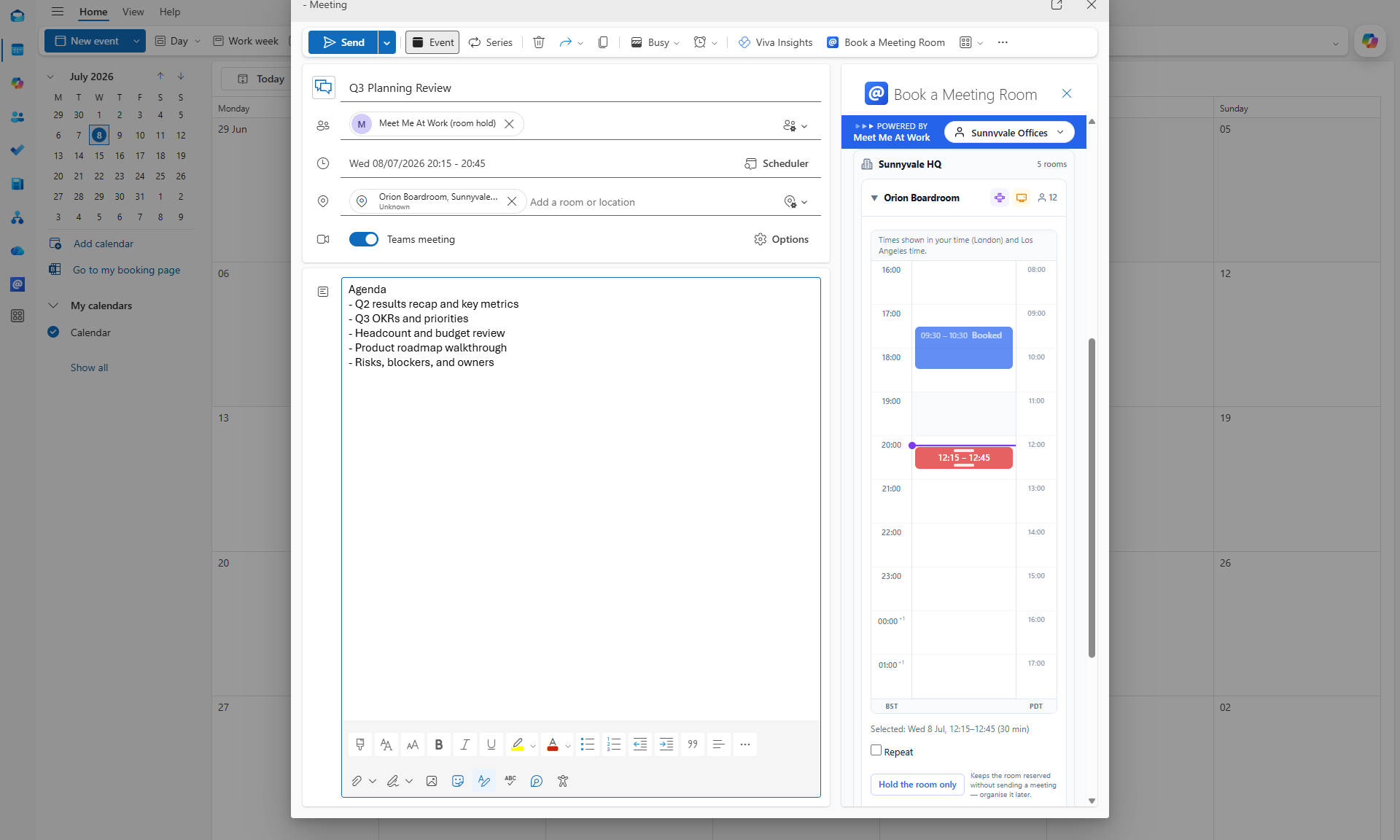
- Click Book a Meeting Room on the ribbon — the taskpane opens beside your meeting.
- Enter your work email address.
- Now check your inbox: a one-time sign-in link arrives within seconds (from meetmeat.work via mmaw.org). Click it, and the taskpane signs itself in. There is no password to create — this link is the whole sign-in, and your device then stays signed in.
3. You're in a sample office — try things, nothing is precious
If your email isn't part of an organisation yet, you'll find yourself in Sample Office (Demo): a ready-made company with four rooms — a boardroom, a meeting room, a pod and a theatre — and a calendar already busy with realistic meetings. It exists so your first booking is real, not imaginary:
- In the taskpane, pick a date and duration — every room shows its genuinely free slots.
- Choose a room and slot: the room, time and a hold are filled into your meeting automatically.
- Add a colleague or your own second address, and Send. Sending the invite is what confirms the booking — no double-entry, and the room is now yours on the calendar.
Talk to it — the voice assistant
The taskpane and the tab carry a booking assistant that takes plain language, spoken or typed. Tap the microphone and say:
“Book the boardroom on Friday at two for an hour.”
It checks the real calendar, finds the room, flags any clash, and sets the meeting up for you to confirm — and if your first choice is taken, ask for “any free room for six people Friday afternoon” and it will offer what's genuinely available. The same assistant is in the phone app, so the person walking to a meeting can book by voice on the way. In the sample office nothing is precious — say something ambitious and see what it does.
Also worth trying while you're in the sample office:
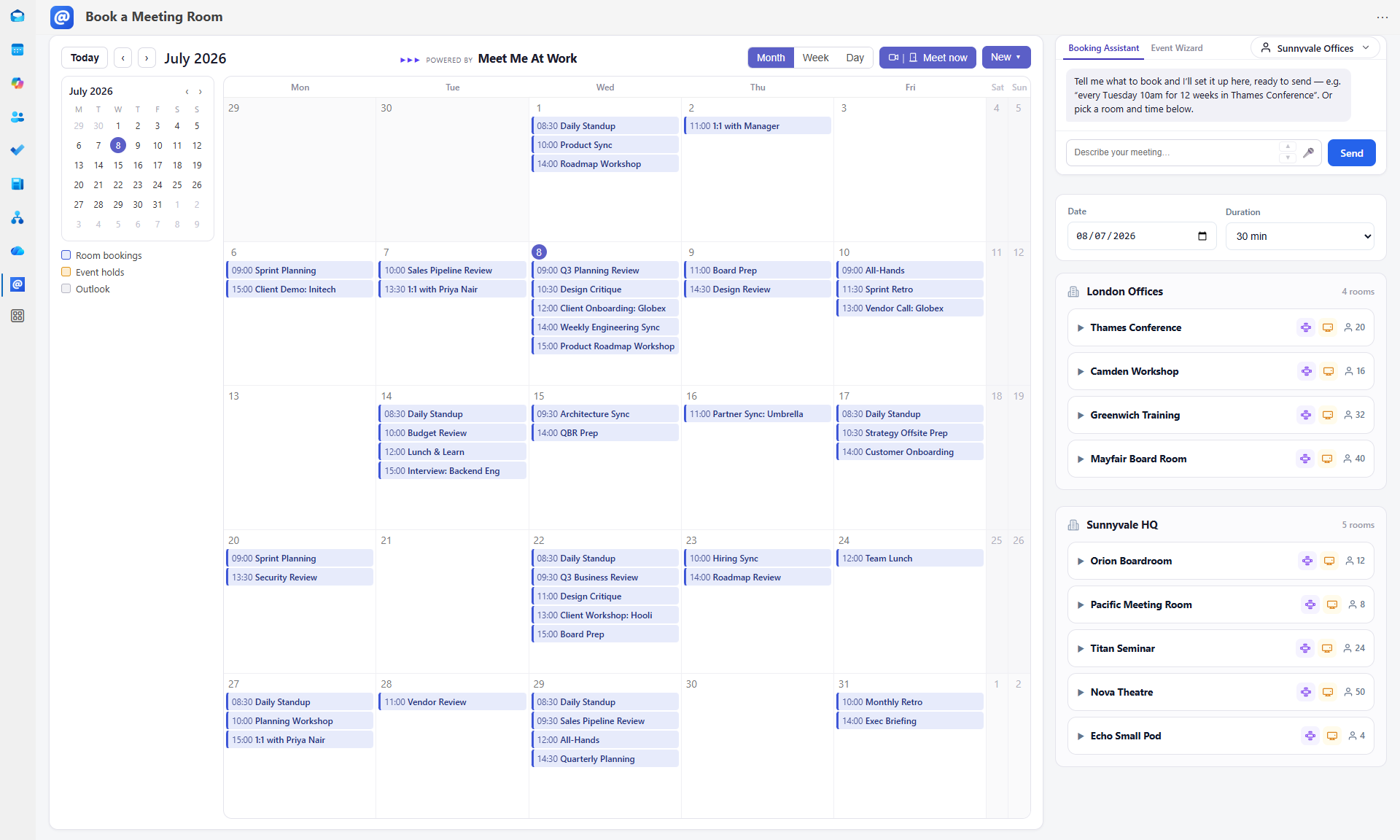
- The tab: in Teams or Outlook, add the Meet Me At Work tab (get it from the Microsoft Teams Store) — every room across every site on one calendar, bookable in place.
4. Ready for real rooms? Create your organisation
- Open the portal — you're already signed in — and choose Create your organisation from the demo banner.
- Step 1 — your organisation: name, country and address (this sets your currency and creates your first site).
- Step 2 — your first room: name, type and capacity. This room is free — no card details are taken. Add as many further rooms as you like; they activate together later in a single checkout, priced per room per month.
- Each room gets a permanent QR code — print it from the room's settings and put it on the door. Anyone who scans it sees the live calendar and can book from their phone, no app required.
The sample office quietly disappears from your lists once your real organisation exists.
5. Roll out to the team
- Deploy the add-in organisation-wide from the Microsoft 365 admin centre (step 1) if you haven't already — your rooms now appear in every colleague's compose window, and bookings mirror into their calendars.
- Pin the tab in Teams for the estate-wide calendar view.
- Invite colleagues simply by them signing in with their work email — anyone on your company domain can be trusted automatically (Visibility settings), and externals can book by scanning the door code.
Where everything is documented
The full user guide — every screen, admins and staff alike, with screenshots — lives at app.meetmeat.work/help, including a PDF you can hand to reception. Booking rules, approvals for long meetings, recurring series, hot desks, visibility tiers and billing are all covered there. For anything else: [email protected].